Submit corrections or additions to info@rotaryhalifaxharbour.ca.
If you have any questions or need assistance with the laptop, Zoom, presentations, or meeting setup, please reach out — we are happy to help.
What You’ll Find on This Page
Quick overview of the topics covered below:
Meeting Agenda (Typical Friday Morning)
Preparing for Your Meeting
Rotary Meeting Launcher
How to Share a Presentation from this Laptop
How to Configure Audio and Video in Zoom
How to Share Your Screen in Zoom
Other Resources
Meeting Agenda (Typical Friday Morning)
Fellowship team should arrive and begin setup between 7:00 – 7:15 a.m.
Roles
room setup and tear down
meeting chair
international toast and/or Rotary minute
attendance and Happy Bucks record
7:30 a.m. – Call meeting to order
Chair reads land acknowledgement
We acknowledge that our club is in Mi'kma'ki, the traditional and ancestral territory of the Mi'kmaq people. We recognize the peace and friendship treaties signed between the British Crown and the Mi'kmaq from 1760 to 1769. We are all treaty people, with rights and responsibilities as Mi'kmaq and settlers alike.
Chair or registration person introduces guests
Rotary minutes / international toast
Happy Bucks
Brief club updates
At or before 8:00 a.m. – Introduce the speaker
By 8:25 a.m. – Speaker finishes and questions begin
Toast Rotary around the world
Preparing for Your Meeting
These resources help Fellowship Teams feel confident before arriving at a meeting.
Tech Overview Video
Rotary Meeting Launcher
Our shared club laptop now includes a refreshed desktop and a new program called Rotary Meeting Launcher. It opens automatically when the laptop starts and gives one-click access to everything needed during the meeting. If it does not open, you can find it on the desktop.
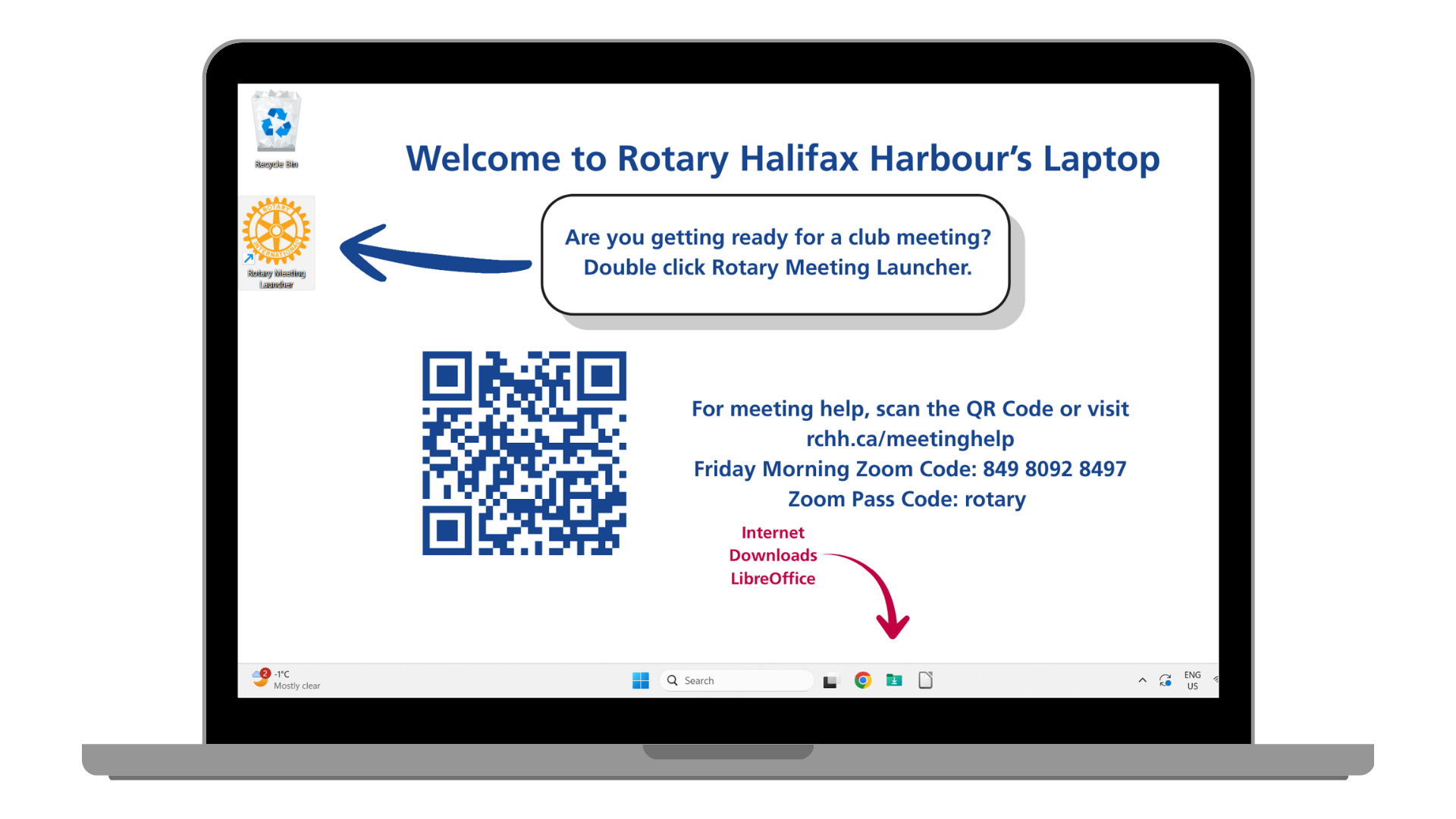
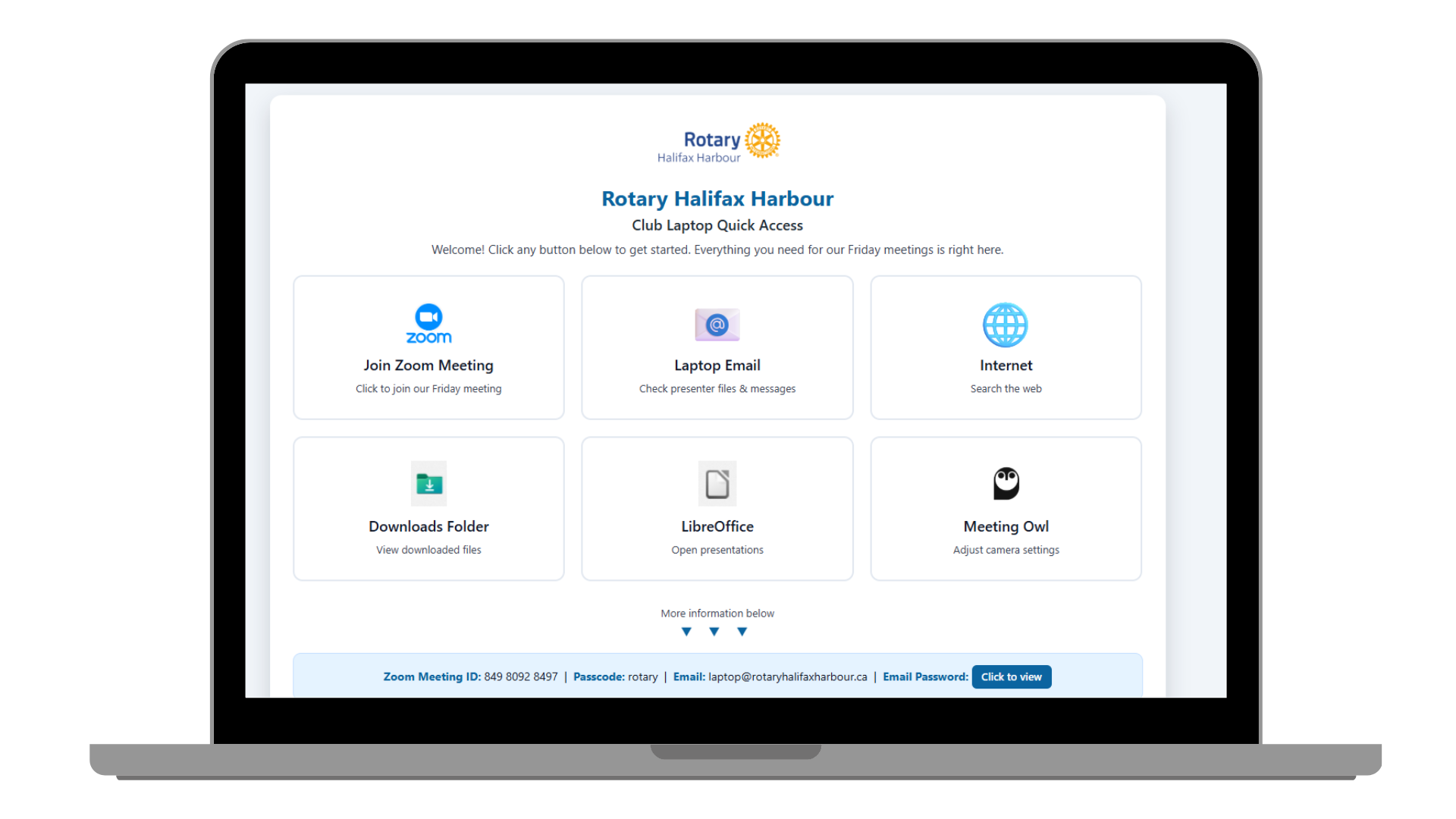
Think of the Rotary Meeting Launcher as your meeting command centre with quick buttons to:
open Friday Zoom meeting
open the laptop's email (laptop@rotaryhalifaxharbour.ca)
open the internet
open the downloads folder (this is where presentations downloaded from email go)
open LibreOffice (an alternative software to Microsoft Office)
Rotary Meeting Launcher Video
📢 How to Share a Presentation from this Laptop
For presenters sending files to the laptop:
laptop@rotaryhalifaxharbour.ca
💡 Tip: Send files at least 15 minutes before the meeting starts. We can open PowerPoint (.pptx), Word (.docx), PDF, and most common file types using LibreOffice (free alternative to Microsoft Office).
🎥 How to Configure Audio and Video in Zoom
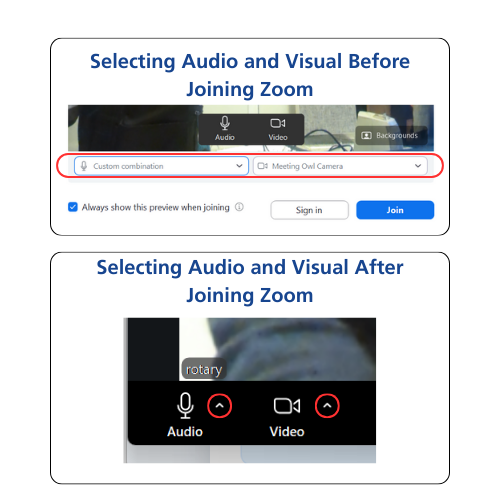
Important: We use a handheld microphone for clear room audio to online participants, and the Meeting Owl as both speaker (to hear online folks in the room) and camera (to show the room to online participants).
📝 Before or After Joining
You'll see the audio and video options menu:
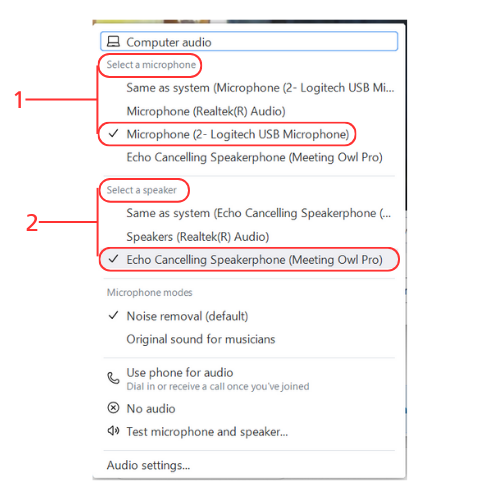
🎤 Audio Settings
Microphone: Select “Microphone (2- Logitech USB Microphone)”
Speaker: Select “Echo Cancelling Speakerphone (Meeting Owl Pro)”
📹 Video Settings
Camera: Select “Meeting Owl Camera”
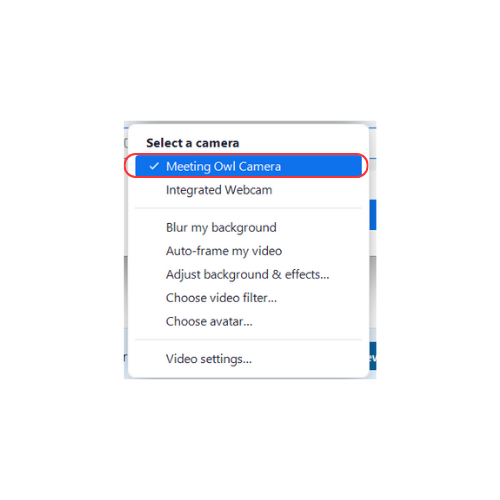
💡 Volume Tip: Before the meeting starts, lower the volume of online chatter using the volume keys on the top left of the keyboard. Don’t forget to turn the volume back up when the meeting begins so everyone in the room can hear online participants!
🔧 Troubleshooting
🔇 If people online can’t hear the meeting:
Make sure the microphone is plugged in
Verify the correct mic is selected in the audio menu
Check if the mic is muted (red line through mic icon) – click to unmute
If sound doesn’t improve, try switching the mic to another USB port on the laptop
🔊 If people in the room can’t hear online folks:
Confirm the online person has not muted themselves
Check that the laptop volume is turned up
Verify the correct speaker is selected (as shown above)
📷 If the Meeting Owl camera isn’t pointing correctly:
Have the speaker stand at least 6 feet away from the Owl so it can look up
Open the Meeting Owl app
Click the gear symbol (⚙️) to open Settings
Go to Default settings to try different camera options
📺 How to Share Your Screen in Zoom
View Detailed PDF Guide ↗ | More Meeting Resources ↗

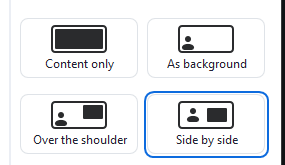
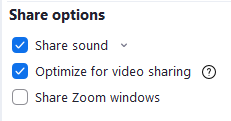
💡 Quick Tips
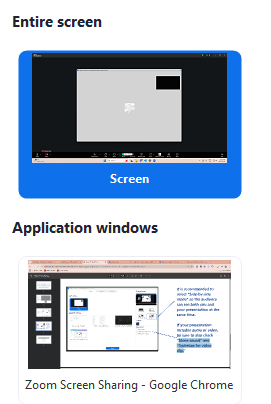
Share your entire screen if you’ll be switching between programs
Share just the presentation window if you only need to show one program
Close unnecessary windows before sharing to avoid distractions
Test your presentation in advance to ensure it displays correctly
To stop sharing: click the red “Stop Share” button at the top of your screen
Can’t find Share Screen? move your mouse to show the Zoom toolbar at the bottom
Other Resources
The laptop passcode is the old district number.